Customer - A customer is accountable for the arrival of money, or we can say an individual or business that buys another company’s goods or services.
Creation of Customer Card in Business Central:
Below is the process for creating customers in Business Central
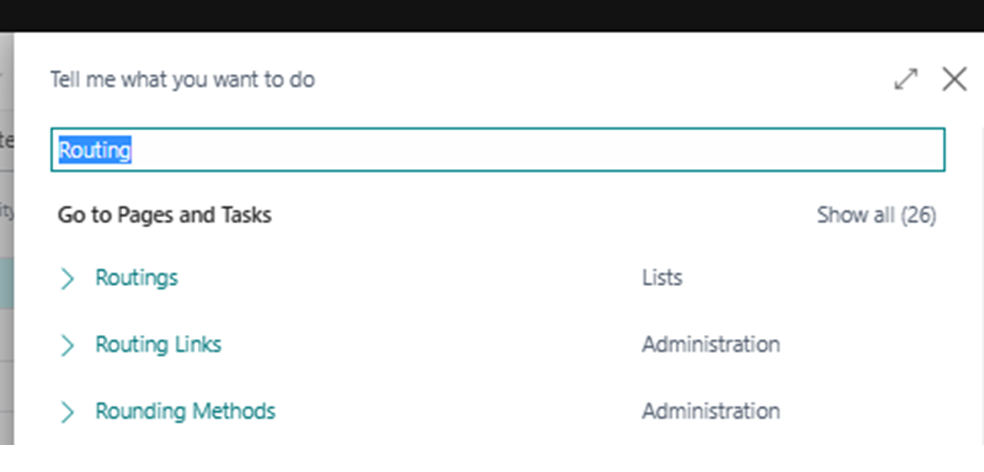
Search “Customer” in Business Central

Customer List will Open.
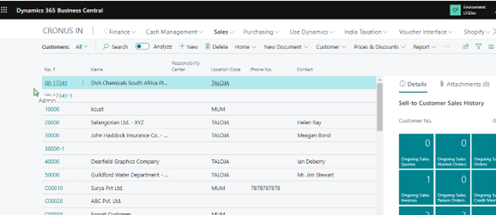
Now click on “NEW”
New Customer Card will open, where we enter desired details depending on the information provided to us.
Below are the mandatory fields which needs to be filled out so that proper transaction related to customer can happen.
Below are the mandatory fields which needs to be filled out so that proper transaction related to customer can happen.
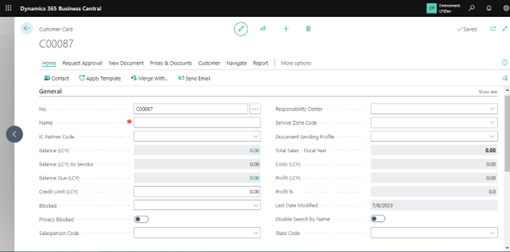
On the General Tab: – General information regarding the customer is filled here.
No. – Customer no. will be auto filled from No. Series setup or user can fill it manually as per their requirements.
Name – Fill the associated description, it will display on the document regarding the customer.
State Code –Only required to be filled if you are a using Indian localization.
All other fields can be filled as per Business condition.
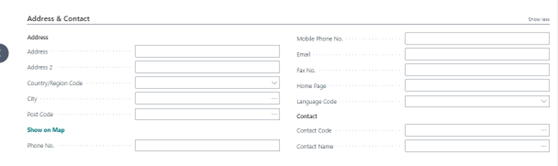
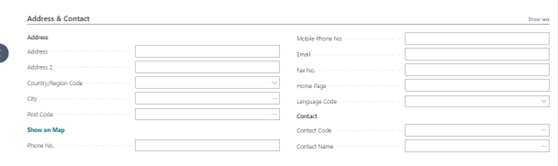
On the Address & Contact Tab: - Information regarding the Address and contact filled here for the customer.
Address & Address 2 - Mention the address information of customer.
Country, Region, and City - Mention postcode, country, and Region Code
All other fields can be filled as per Business conditions.
On the Invoicing Tab: - Here we fill in the details which are essential for transactions related to customers, if we don’t fill in the details user will encounter an error when posting any transaction.
Gen. Bus. Posting Group - This field on Customer Card is crucial as it is responsible for hitting Different GLs in the chart of accounts depending on the combination of General prod. Posting group on item card and this (Gen. Bus. Posting Group) defined in the General posting setup while doing transactions related to the customer.
Customer Posting Group - This defines the GLs (balance sheet accounts) into which transactions are posted. Multiple posting groups can be defined for different things for example, one for Domestic postings or another for Exports.
VAT Bus. Posting Group(optional) - This field is optional, and it’s based on the localization which you are using. Here we specify how VAT is calculated for this customer. The VAT Bus and VAT Prod. Posting Group combination defined in the VAT Posting Setup matrix decides which accounts are posted when a customer-related transaction is done.
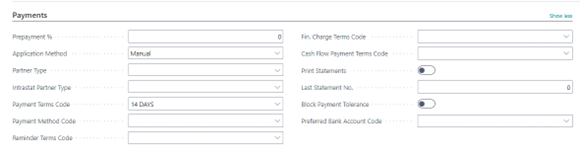
On the Payments Tab: - Payment-related Information is provided here.
Application Method - When you create a new customer card then, in this field default value is Manual, you can select it as Apply-to oldest also depending on the business requirement.
Payment Terms Code - You can select required options from the payment terms master depending on this Ageing report and cashflows will be affected.
All other fields can be filled as per Business conditions.
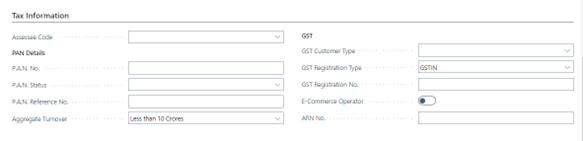
On the Tax Information Tab: - Specifically used for Indian localization.
Assessee Code - For deducting TDS & TCS of the customer this field is compulsory we can select the option from the dropdown.
Pan No. - This field is compulsory for Indian customers otherwise TDS & TCS will be deducted at higher rates.
GST Customer Type and GST Registration No. - This field is compulsory for Indian customers if we want to deduct GST on Sales Invoice for that GST Registration no. is also required after filling in the GST Registration no. GST customer type field will be auto-populated, but for customers outside India GST, customer type should be filled manually by using Drop Down.
All other fields can be filled as per Business conditions.
Below is the overview of the different tabs available on the Customer card: –
We will discuss briefly related to every tab:
General Tab: -Basic details regarding the customer is filled in here.
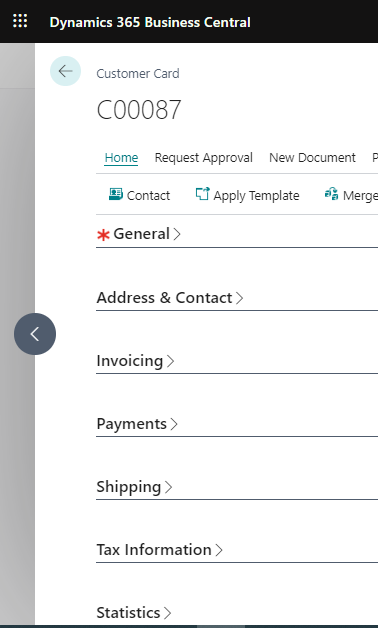
We will discuss briefly related to every tab:
General Tab: - Basic details regarding the customer is filled in here.
Address & Contact Tab: - Address & Contact related details are provided here related to a customer.
Invoicing tab: - Here we fill in the details which are essential for transactions related to customers, If we don’t fill in the details user will encounter an error at the time of posting any transaction.
Payments Tab: - Payment-related details are provided here.
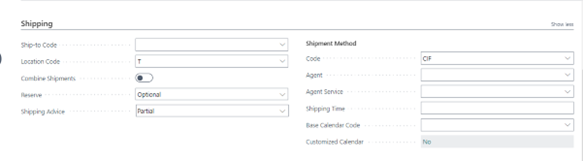
Shipping Tab: - If we want to ship the consignment at a different place on customer requirement we provide the details here.
Tax Information Tab: - Tax-related details are provided here if the customer is eligible for taxation.
Statistics Tab: - Depending on the transaction related to the customer different reports and historical data are visible here no fields are available for manual selection.